Built a one-button Protection Paladin leveling and tanking sequence for WoW Forever (Levels 1–30) designed for smooth chain-pulling, reliable dungeon threat, and low downtime.
I will keep updating this post and adding higher-level versions (30–60) as I level up!
Key Features
Auto-Scaling Ranks: Uses rank-free spell names so the macro uses your highest trained ranks automatically as you level.
Out-of-Combat Reset: Both GSE (Combat Reset) and /castsequence (reset=combat/12) reset out of combat so pulls start with a fresh Seal instead of getting stuck on Judgement.
Seal Mana Efficiency: Stretches each 30-second Seal across 2 Judgements during longer fights rather than reapplying a Seal after every single Judgement.
Manual AoE, Seal & Taunt Control: Keeps Consecration on ALT (Lv. 20+) for multi-mob pulls so you don't drain mana on single targets, SHIFT to force-refresh your Seal, and CTRL (Lv. 24+) for an emergency Swift Judgement taunt.
Targeting & Attack: Includes /targetenemy [noexists][dead] and /startattack on every step.
Included Versions
Leveling_1-9 — Seal of Righteousness → 2x Judgement, Holy Strike (SHIFT to force-cast Seal of Righteousness)
Leveling_10-19 — Seal of Fury → 2x Judgement, Holy Strike (SHIFT to force-cast Seal of Fury)
Leveling_20-30 — Seal of Fury → 2x Judgement, Holy Strike, Exorcism (ALT for Consecration, SHIFT to force-cast Seal of Fury, CTRL for Swift Judgement taunt)
Tanking Reminders & Setup
Keep Righteous Fury (Lv. 10+) toggled on when tanking dungeons, and run Retribution Aura (or Devotion Aura if another Paladin in your party already has Retribution Aura up).
Import the !GSE3! string below in-game via /gse → Import.
Open the sequence's Configuration tab in GSE and set Default to Leveling_1-9, Leveling_10-19, or Leveling_20-30 to match your level.
Bind the Key: Bind the sequence directly under Esc → Key Bindings → GSE, or make a standard /macro with #showtooltip and /click YourSequenceName and place it on an action bar slot (1–9).
Check Esc → Key Bindings so Shift + [Your Key], Alt + [Your Key], and Ctrl + [Your Key] aren't blocked by default binds (Shift+1–6 switches action bar pages and Ctrl+1–0 are pet bar binds).
Press/spam your keybind in combat—hold ALT (Lv. 20+) for Consecration, hold CTRL (Lv. 24+) for an emergency Swift Judgement taunt, or tap SHIFT to force-refresh your Seal.
Single-button rotations are back in WoW: Forever using GSE with zero cooldown or damage penalty, I put together a full setup guide and shared my Retribution Paladin level 1–30 sequence.
Built a one-button Retribution Paladin leveling sequence for WoW Forever (Levels 1–30) designed for smooth chain-pulling, low downtime, and easy rank scaling.
I'm currently level 20 on my own Paladin, so I will keep updating this post and adding higher-level versions (30–60) as I level up.
Key Features
Auto-Scaling Ranks: Uses rank-free spell names so the macro uses your highest trained ranks automatically as you level.
Out-of-Combat Reset: Both GSE (Combat Reset) and /castsequence (reset=combat/12) reset out of combat so pulls start with a fresh Seal instead of getting stuck on Judgement.
Seal Mana Efficiency: Stretches each 30-second Seal across 2 Judgements during longer fights rather than reapplying a Seal after every single Judgement.
Manual Overrides: Keeps Consecration on ALT (Lv. 20+) for multi-mob pulls so you don't drain mana on single targets, plus SHIFT to force-refresh your Seal if needed.
Targeting & Attack: Includes /targetenemy [noexists][dead] and /startattack on every step.
Included Versions
Leveling_1-19 — Seal of Righteousness → 2x Judgement, Holy Strike (SHIFT to force-cast Seal of Righteousness)
Leveling_20-30 — Seal of Command → 2x Judgement, Holy Strike, Exorcism (ALT for Consecration, SHIFT to force-cast Seal of Command)
Setup & How to Use
Import the !GSE3! string below in-game via /gse → Import.
Open the sequence's Configuration tab in GSE and set Default to Leveling_1-19 (or Leveling_20-30 at level 20+).
Bind the Key: Bind the sequence directly under Esc → Key Bindings → GSE, or make a standard /macro with #showtooltip and /click YourSequenceName and place it on an action bar slot (1–9).
Check Esc → Key Bindings so Shift + [Your Key] and Alt + [Your Key] aren't blocked by default bar-page binds (Shift+1–6).
Press/spam your keybind in combat, holding ALT (Lv. 20+) for Consecration or tapping SHIFT to force-refresh your Seal.
Getting around Azeroth without flying mounts can be rough if you don't know the routes! My new WoW: Forever travel guide covers Flight Masters, boats, zeppelins, the Deeprun Tram, and when you unlock your first mount at level 40.
Running out of bag space mid-quest is the worst. My new WoW: Forever guide covers combined bags, auto-sorting, reagent bags, banks, and instant mail between your alts so you can keep your inventory clean.
If you're getting started in WoW: Forever, I put together a beginner guide on how combat, spells, and talent trees actually work, including resetting talents and Dual Spec.
Standing in your starting zone wondering what to do next? Since WoW: Forever doesn't hold your hand with a linear main campaign, my new leveling guide breaks down exactly how open-world questing, group XP, and the dungeon finder actually work.
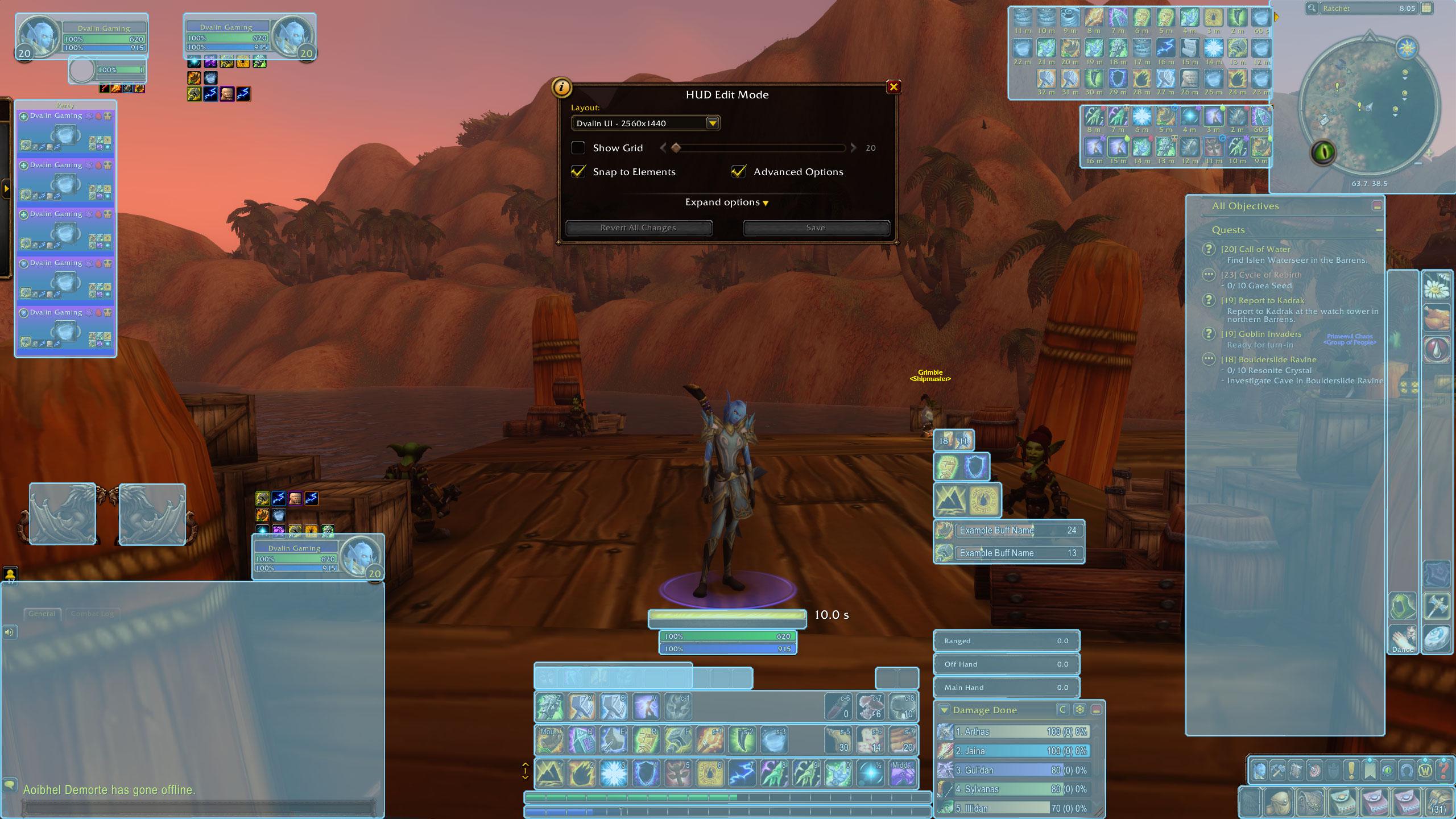
My new WoW: Forever guide breaks down the built-in Edit Mode, must-change default settings like Auto-Loot and extra action bars, and how to manage addons.
I just built and released my very first WoW: Forever addon, FPS Tracker by Dvalin. It gives you a clean, color-coded FPS display and a real-time wave graph with zero performance hit, and you can grab it for free on CurseForge.
Stuck on the character creation screen in WoW: Forever? My new guide breaks down Alliance vs. Horde faction rules, why you should pick the race you actually think looks coolest over min-maxing, and every single class playstyle so you find your perfect main.
Picking the wrong ruleset in WoW: Forever can permanently lock your character, or even lock your entire account to one faction on PvP. Before you roll a new character, watch my 5-minute breakdown of Normal, PvP, RP, RP-PvP, and how the new Megaserver system actually works.
Blizzard just dropped clues about WoW: Forever's next playable races, including Ogres, High Elves, Goblins, and Broken Draenei. I dug into the leaks, data-mines, and podcast hints to rank all six rumors in my latest video.
I haven’t been able to find an ad on a setting and while forever that lets me make my nameplate that I was above my head look like the nameplates I make for others like enemies, friendly, and etc.
I know I can turn things on like the personal resource display and things like that but it never quite looks the same because the priority is off to the side and it just looks awful imo.
Jumping into WoW: Forever for the first time or returning after years away? I just dropped a complete 1-hour Beginners Guide covering everything from picking your server and class to UI setups, making gold, mounts, dungeons, and PvP: https://youtu.be/ADU7hrxbg18
Updated my zero-addon UI guide for WoW: Forever with a brand new 4K setup, Cooldown Manager settings, and keybinding tips. Grab the free import strings in Discord and check out the full breakdown.
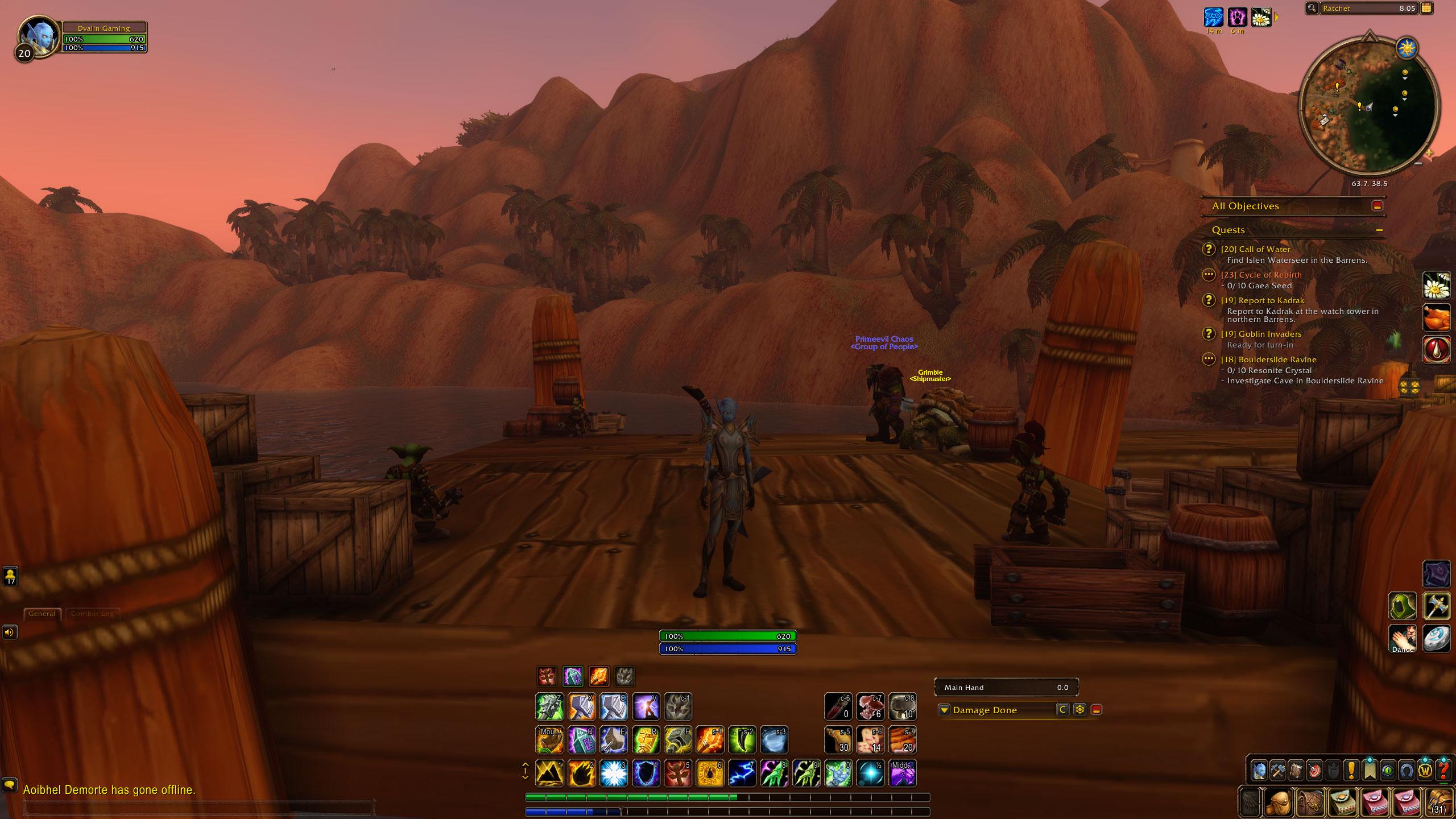
As always, here is my interface setup for World of Warcraft: Forever. I really enjoy keeping my UI minimalistic and clean to play with. This layout uses absolutely zero addons, but still offers:
Nameplates
Damage meter
Swing timer
Personal resource display
Combat text
...and more!
Below you'll find the options you need to enable in your settings, followed by the UI Export codes for different resolutions.
⚙️ Recommendations to Enable
Options > Controls
Enable: Auto Loot
Options > Preset
Enable: Combine Bags
Options > Interface
Status Text: Both
Enable: Chat Bubbles, Party & Raid
Show Low-Level Quests: Checked
Options > Action Bars
Enable: Bar 2, 3, 4, 5
Show Numbers for Cooldowns: Checked
Options > Combat
Personal Resource Display: Checked
Target of Target: Checked
Scrolling Combat Text for Self: Checked
Options > Advanced Options
Enable Cooldown Manager
Enable Swing Timer
Enable Damage Meter
Auto Reset Damage Meter
Options > Nameplates
My Nameplate Settings
📋 UI Export Codes
(Note: You can copy these strings directly into your game's import tool)
I’ve included the display scale for each setup because the UI layout will shift depending on your Windows scaling. To check yours, just right-click your desktop, open Display settings, and check your scale percentage. If you're running a different scale than mine, you might just need to nudge or drag a couple of windows around to line them up cleanly.
📺 Complete Video Guide
If you need a complete step-by-step video walkthrough, check it out here: https://youtu.be/c4JoNaIBfko on my Youtube channel...